Your iPhone has a new anti-scam feature you probably don’t know about. Apple added Impersonation Risk Detection in iOS 27 and iPadOS 27, but it ships turned off — and the toggle is buried deep enough that most people will never find it. Here’s what it does and why you should turn it on.
What is Impersonation Risk Detection?
It targets a specific kind of attack: live social engineering. Picture a scammer posing as your bank’s fraud department, walking you through “moving your money to a safe account” while you’re on the phone with them. Face ID and two-factor codes can’t help here — you’re cooperating voluntarily because you’ve been manipulated.
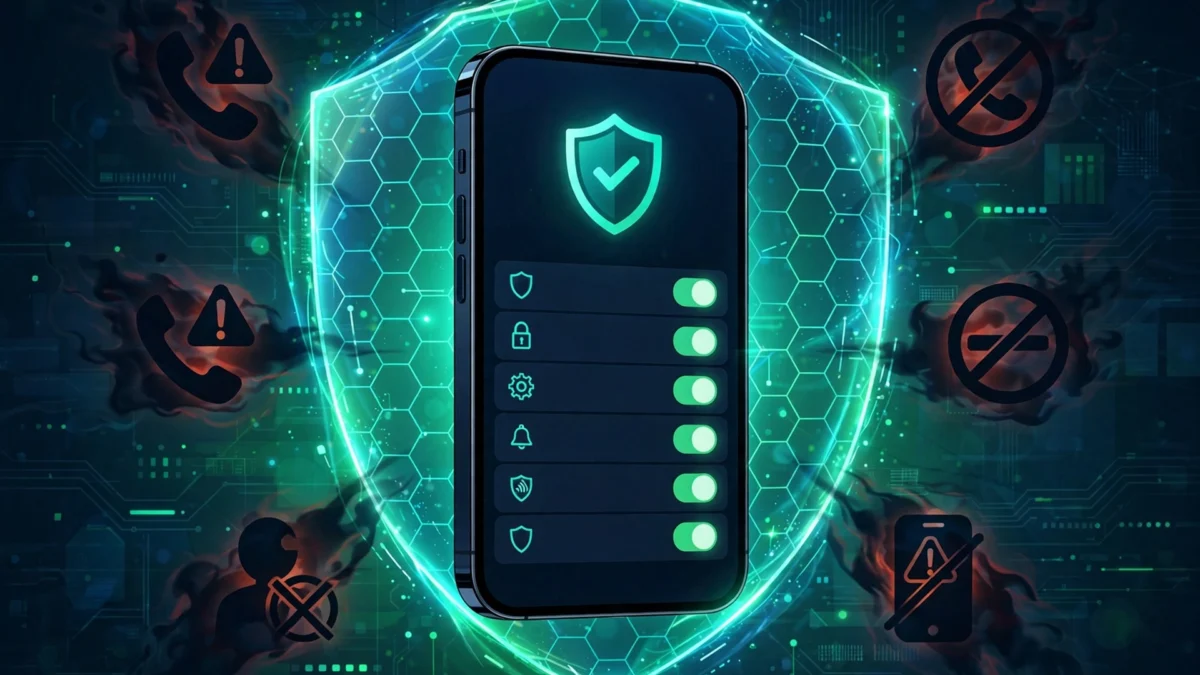
When you perform a sensitive action inside a supported app — sending a payment, changing a password — the app can ask iOS for a risk assessment. Your iPhone analyzes on-device signals like interaction patterns, timing, and context, alongside device-use patterns (such as the approximate number of recent calls and emails) and Apple Account information like app downloads and content purchases. It then returns a single rating: Unknown (nothing suspicious detected), Medium (some signs), or High (significant signs). The app then decides what to do: show a warning, add a delay, or ask you to re-verify your identity. Under the hood, this runs on Apple’s Trust Insights framework, introduced at WWDC 2026.
What Apple can and can’t see
Apple says the analysis happens entirely on your device. It does not read the contents of your Photos, Messages, or Mail, and Apple itself never receives the underlying data used to generate the rating — only the app gets the risk level. One nuance: Apple does learn the type of action you attempted when an app requests an assessment (a payment vs. a password change, for instance). That privacy design is exactly why the feature is opt-in: you’re choosing to let supported apps request these assessments.
How to turn it on
- Open Settings on your iPhone or iPad.
- Tap Privacy & Security, then scroll down.
- Tap Impersonation Risk Detection.
- Turn on Share with App Developers.
- If prompted, sign in to the App Store with your Apple Account (the feature draws on Apple Account signals, which is why sign-in may be required).
Apple says it can take up to 24 hours for the protection to fully activate. After that, you can return to the same screen to see which apps have requested risk assessments and why — and revoke access for individual apps anytime.
The catch: apps have to support it
This is the honest limitation. The feature does nothing on its own — it only works inside apps whose developers have built in support, and Apple hasn’t published a list of which apps qualify yet. Turning it on today is a “when it’s ready” move. Its real-world impact depends entirely on how quickly banking and payment apps adopt it.
One warning worth remembering
Apple’s support page includes a telling detail: if someone contacts you and tells you to turn this feature off, treat it as a major red flag. Changes to the setting can take up to 24 hours to take effect — deliberately, so a scammer rushing you through a “transfer” can’t disable the protection in the moment. If anyone asks you to touch this toggle, hang up and contact the company through a number you trust.
How it compares: iPhone vs Pixel vs Galaxy
Apple isn’t alone here. Google’s Pixel phones have long offered call screening and suspected-spam warnings, and Samsung’s Galaxy devices include Smart Call spam identification. The difference: those focus on incoming calls and messages, while Apple’s feature watches what happens inside apps during sensitive actions — the exact moment a social-engineering scam does its damage. They complement each other rather than compete.
Sources: Apple Support, Help Net Security, 9to5Mac.