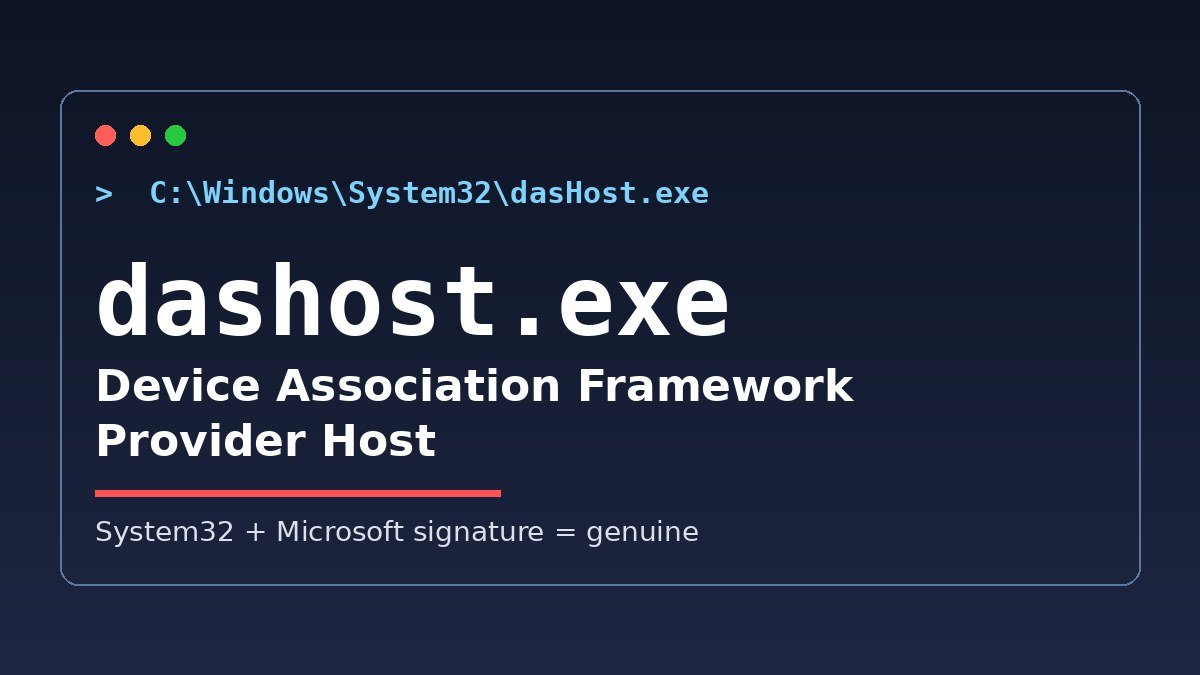
dashost.exe is a legitimate Microsoft Windows process called the Device Association Framework Provider Host. Its job is discovering and pairing hardware with your PC: mice, keyboards, printers, webcams, Bluetooth speakers, and other wired and wireless devices. If you saw the name in Task Manager and worried it was a virus, the short answer is that the real file is safe. The catch is that malware sometimes reuses the same name, so the file is only trustworthy when it is the genuine one in the right place.
What is dashost.exe?
The full name is Device Association Framework Provider Host, and the file behind it is dasHost.exe. Windows runs it in the background so devices can be found, connected, and managed without you doing anything manually. It also lets apps send alerts to connected devices. You will usually see it listed in Task Manager as “Device Association Framework Provider Host” rather than by its file name. How-To Geek and The Windows Club describe the same function, and GlassWire confirms it pairs both wired and wireless hardware. Descriptions that tie it to Windows Update or compatibility tools mix it up with other Windows components.
Is dashost.exe safe or a virus?
The genuine dashost.exe is safe. It is a Microsoft Windows system process. No antivirus should flag the genuine file, but false positives happen: Sophos once flagged the real System32 dasHost.exe as ransomware, so if your scanner flags it, investigate the exact detection rather than assuming the file is fake or safe. Safety depends on which file you are looking at. Malware authors deliberately give their programs the same file name to escape detection, and file.net lists Trojans recorded under this name, including Trojan:Win32/Skeeyah.A!rfn and Trojan:Win32/Dynamer!ac (Microsoft detections) and Trojan.Gen and Packed.Vmpbad!gen38 (Symantec detections). So the name alone never settles the question. What settles it is the file behind the name: where it lives, who signed it, and whether your security software flags it.
| Check | Genuine file | Suspicious file |
|---|---|---|
| Location | C:\Windows\System32 | User profile folder, Program Files subfolder, or anywhere else |
| Publisher signature | Signed by Microsoft | Missing, unknown, or mismatched signature |
| Security software | No detection expected; a flag deserves investigation | Flagged by Windows Security or your antivirus |
| Behavior alone | High CPU or network activity can still be normal | High CPU or network activity alone does not prove malware either |
The last row matters. High CPU use, network traffic, or more than one instance does not by itself prove malware. itigic cautions that a folder name alone is not a safety test, and that file sizes vary between Windows builds, so size cutoffs from old guides are unreliable. Location plus signature plus a clean scan is the combination that actually answers the question.
How do I check if my dashost.exe is real?
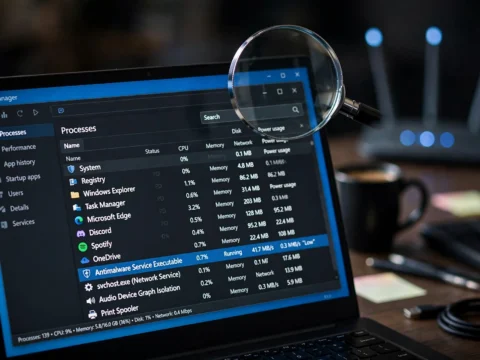
- Open Task Manager with Ctrl + Shift + Esc and find Device Association Framework Provider Host.
- Right-click it and choose Open file location to see the actual file behind the process.
- Confirm the file opens from C:\Windows\System32 and is named dasHost.exe.
- Right-click the file, open Properties, and check the Digital Signatures tab for a Microsoft signature.
- Run a scan with Windows Security if anything looks off, and treat a file outside System32 as suspicious.
If the file is in System32, signed by Microsoft, and no security software flags it, you are looking at the genuine process. A flag on even a System32 file is usually a false positive, but investigate the exact detection before acting. If it sits in your user profile folder or a Program Files subfolder, file.net rates those variants as 85% and 96% dangerous respectively, and you should scan and remove that copy with antivirus software. Never delete the System32 file to fix a problem: that is the real Windows component.
Why is dashost.exe using high CPU or network?
dashost.exe works hardest when devices are being discovered, paired, or managed, so activity spikes around new hardware or flaky device connections are expected. GlassWire, testing the process with its own network monitor, found it connected only to local hosts on its test network, never to the wider internet, which fits a device-pairing job. If something looks off, work through the steps in this order so they do not contradict each other. First, run the location and signature check above: a file outside System32, or one without a Microsoft signature, is the suspicious case, and that copy should be removed with antivirus software. Second, if the file passes the check and CPU use still stays high for no clear reason, How-To Geek documents this temporary step: end the Device Association Framework Provider Host task in Task Manager and restart the computer, which reloads the process. Third, if the problem returns after restart, check drivers for the connected devices and run a malware scan rather than assuming the process itself is malicious. Blocking the genuine process with a firewall is not recommended at any step, since pairing features may stop working.
Can I disable or remove dashost.exe?
No, and you should not try. It is a system service, not an installed app, so there is nothing to uninstall. Microsoft’s own Q&A answer warns that disabling it affects most device connections to your PC: mice, keyboards, printers, and Bluetooth devices depend on it. The only safe temporary step is ending the task in Task Manager, which Windows reverses on restart. If you have a suspicious copy outside System32, remove that copy with antivirus software, and leave the System32 file alone. The same location rule applies to other Windows processes we have covered: check where the file lives before deciding anything. Read our WerFault.exe guide and our ifrmewrk guide for the same check applied to two other confusing process names.
Frequently asked questions
Can I delete dashost.exe?
No. See “Can I disable or remove dashost.exe?” above for the full explanation. The one-line version: never delete the System32 file, and remove only a suspicious copy elsewhere with antivirus software.
Is it normal to see more than one dashost.exe process?
More than one instance does not by itself prove malware. Check each instance the same way as in the check section above: open its file location and confirm System32 plus a Microsoft signature.
Should I block dashost.exe in my firewall?
No. As covered in the CPU and network section above, its observed network activity is local device work, and blocking the genuine process can break pairing. Only block or remove a copy that fails the location and signature checks.
Sources: How-To Geek, “What Is Device Association Framework Provider Host and Why Is It Running on My PC?”; The Windows Club, “What is dasHost.exe?”; file.net, “dasHost.exe Windows process”; GlassWire, “What is dashost.exe?”; Microsoft Q&A, dasHost.exe infection discussion.