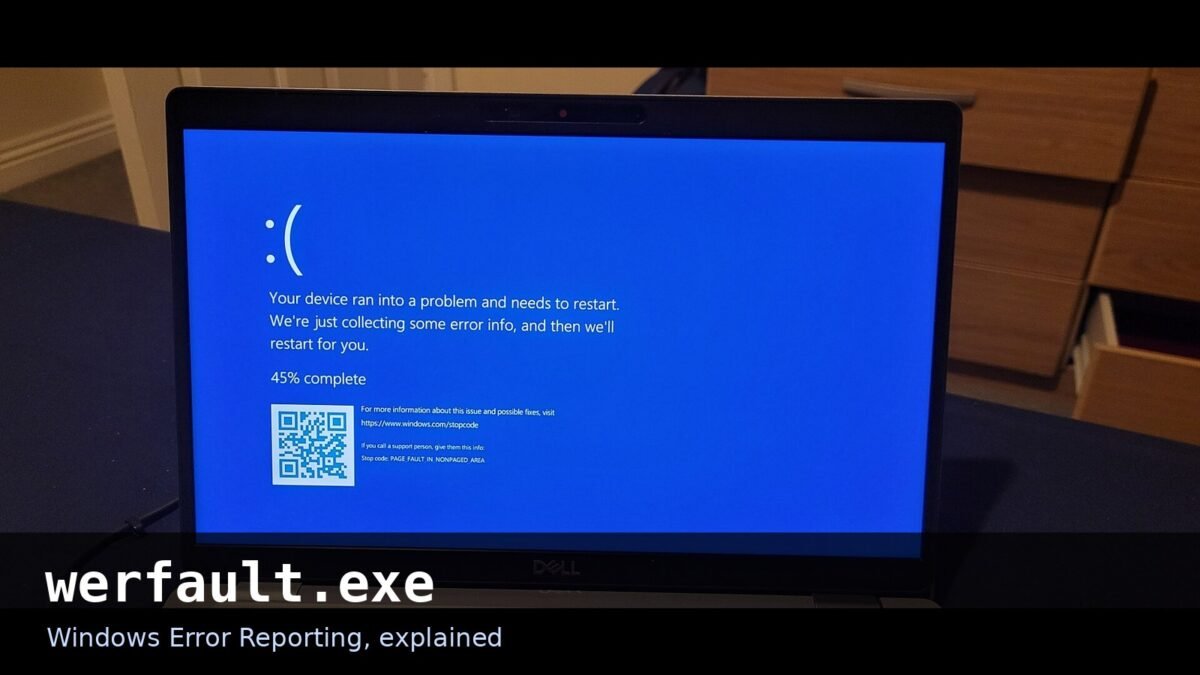
If an app crashes on your Windows PC, you may find werfault.exe running in Task Manager right after, or see a dialog titled “Werfault.exe – Application Error,” sometimes with a line about memory that could not be read. It looks alarming, and it tends to repeat until the underlying problem is fixed.
Short answer first: werfault.exe is Windows’ own crash reporter, and usually it is not the thing that broke your app. In most cases the error belongs to whatever crashed, and werfault.exe is just the process that shows up to report it. The exception is when the dialog names WerFault itself, covered below.
What is werfault.exe?
Werfault.exe is the user-mode process for Windows Error Reporting (WER). When an application crashes or stops responding, it collects crash details, can send a report to Microsoft if you allow it, and displays the error dialog you see. It normally runs only when something fails, which is why most people never notice it on a good day.
On 64-bit Windows, the genuine file exists in two places: the 64-bit copy in C:\Windows\System32 and the 32-bit copy in C:\Windows\SysWOW64. Both are legitimate. Which one runs depends on whether the crashed app is 64-bit or 32-bit, so a 32-bit app crashing will quite properly launch WerFault from SysWOW64. The file is signed by Microsoft. Windows has a whole family of background processes with cryptic names that look suspicious and turn out to be ordinary system parts. We recently explained ifrmewrk.exe the same way, and werfault.exe belongs in that same category: unfamiliar name, legitimate job.
Is werfault.exe safe?
Yes, the genuine file is safe. The confusion comes from two things: it appears exactly when something goes wrong, and malware sometimes borrows the names of trusted system processes to hide. So the check comes down to location and signature.
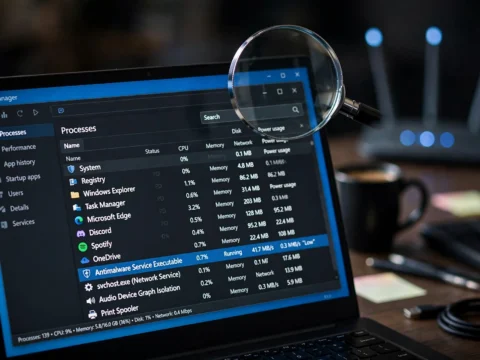
To verify it, open Task Manager with Ctrl + Shift + Esc, find Windows Problem Reporting or werfault.exe in the list, right-click it, and choose Open file location. The path must be C:\Windows\System32 or C:\Windows\SysWOW64, nothing else. Then right-click the file, open Properties, and check the Digital Signatures tab: it should show Microsoft Windows. If the file runs from anywhere else, treat it as suspicious and run a full scan in Windows Security before doing anything else. Note the limit of the signature check, explained below: it cannot catch every attack on its own.
| Check | Genuine werfault.exe | Suspicious copy |
|---|---|---|
| Location | C:\Windows\System32 (or SysWOW64) | Any other folder, especially user or temp folders |
| Signature | Microsoft Windows on the Digital Signatures tab | Missing, expired, or a different publisher |
| Behavior | Appears briefly after an app crash, then exits (unless an app is crashing repeatedly, in which case it will keep reappearing) | Runs constantly, or starts with no crash at all |
There is one documented attack where the two checks above are not equal. Researchers at K7 Security Labs, covered by BleepingComputer, found a campaign that copied the genuine, Microsoft-signed WerFault.exe into an ordinary folder and placed a malicious faultrep.dll beside it. When WerFault launched, Windows loaded the malicious DLL from the same folder instead of the real one. The signature check passes in this attack, because the executable genuinely is Microsoft’s. Only the location check catches it: a WerFault running from anywhere outside System32 or SysWOW64 is not the real thing, no matter how valid its signature looks.
Why does the werfault.exe application error appear?
The dialog usually reads something like “Werfault.exe – Application Error: The instruction at 0x000000 referenced memory at 0x000000. The memory could not be read.” The zeros vary. What stays constant is the cause list behind it.
Most often, the app that crashed is the cause: a bug, a corrupt install, or a bad update. After that come damaged Windows system files, a faulty driver, failing memory, and, least often, malware posing as the process. Werfault.exe reports the crash. It rarely causes it, so removing it does not fix the app that keeps falling over.
One distinction most guides skip, and it decides which fixes below apply to you. If the dialog title says “Werfault.exe – Application Error,” WerFault itself has crashed. That points at corrupt system files or a problem with Windows Error Reporting itself, so the system-file and memory steps matter most. If the dialog names your app instead, that app crashed, and the app and driver steps are where you should start.
How to fix werfault.exe errors
Work through these in order. The first two steps fix most cases, and the later ones are for errors that keep coming back.
- Find the app that actually crashed. Search for “reliability” in Start and open Reliability Monitor. Look at the failure entries just before the werfault entries. That app is your real problem, and everything below is aimed at it. For a deeper look, open Event Viewer, go to Windows Logs, then Application, and find the faulting module name in the error entry: that names the exact file that failed. Crash dump files, if you want to go further, live at %LOCALAPPDATA%\CrashDumps.
- Update or reinstall that app. Check the app for updates first. If it is already current, uninstall it and install a fresh copy. A corrupt install is one of the most common triggers for repeated werfault pop-ups.
- Clean-reinstall your graphics driver. Graphics drivers are a frequent trigger for repeated WerFault errors. Do not rely on Windows Update for this one: download the driver from the GPU vendor’s own site and choose the clean-install option, or use Display Driver Uninstaller in Safe Mode for a full wipe before reinstalling. If you use Display Driver Uninstaller, download it only from its official site: driver-issue searches are prime territory for fake download sites, and this article is about not getting fooled by those.
- Install all Windows updates. Go to Settings, then Windows Update, and install everything offered. Bad updates cause these errors, but so do missing ones.
- Repair Windows system files. Open Terminal or Command Prompt as administrator and run DISM /Online /Cleanup-Image /RestoreHealth, then sfc /scannow. Restart when both finish. This pair repairs the system files that werfault itself depends on.
- Test your memory. Search for “Windows Memory Diagnostic,” run it, and let the PC restart into the test. Faulty RAM produces exactly the “memory could not be read” flavor of this error, and it will keep returning until the hardware is addressed.
- Run a full malware scan. Open Windows Security, go to Virus and threat protection, and run a Full scan. Do this especially if the file location check above looked wrong. If a scan finds something that may have taken personal data, our data breach guide covers what to do next.
- Try a clean boot to isolate interference. Press Windows + R, type msconfig, and on the Services tab hide all Microsoft services and disable the rest. On the Startup tab, disable startup items, restart, and re-enable them in small groups until the error returns. The last group you enabled holds the trigger.
- Disable Windows Error Reporting, only as a last resort. Press Windows + R, type services.msc, find Windows Error Reporting Service, and set its startup type to Disabled, then stop it and restart. This stops the pop-ups and the high CPU use, but it does not fix the crashing app, and Microsoft stops receiving crash reports from your PC. Use it to buy quiet, not as a cure.
Should you delete werfault.exe?
No. Deleting a Windows system file can break error reporting and cause other Windows features to misbehave, and the file will likely be restored by the next system repair anyway. Disabling the service, step 9 above, is the supported off-switch. If the errors persist after that, the cause is almost certainly the crashing app or the hardware underneath it, and that is where the fix belongs.
Frequently asked questions
Is werfault.exe a virus? The genuine file is not. Check that it runs from C:\Windows\System32 or C:\Windows\SysWOW64 and carries a Microsoft signature. Anything else deserves a malware scan.
Why is werfault.exe using high CPU? Usually because an app is crashing repeatedly, so Windows Error Reporting keeps collecting reports. Fix the crashing app and the CPU use goes with it.
Can I just end the task in Task Manager? Yes, temporarily. Ending it stops that instance, but it will return the next time an app crashes. It is a pause button, not a fix.
Sources
- Microsoft Learn: Windows Error Reporting and Windows diagnostics enablement guidance (official documentation)
- Microsoft Learn: About WER (official documentation)
- BleepingComputer: Hackers abuse Windows error reporting tool to deploy malware (K7 Security Labs campaign)
- Microsoft Q&A community thread: “Werfault.exe has completely broken my pc” (community thread, not official documentation)
- Microsoft Q&A community thread: “Windows Operating system has stopped working and getting error ‘Werfault .exe Application error'” (community thread, not official documentation)