Here is the short version, because it changes how you should read the rest of this guide. lsalso.exe is not a file you will find on your PC. It is a misreading of LsaIso.exe, where the capital I in Iso gets read as a lowercase l. You searched for lsalso.exe because guides and search results spell it that way, but in Task Manager you will see LsaIso.exe, not lsalso.exe. That isolated process belongs to Windows Credential Guard and is legitimate. A file literally named lsalso.exe is not the documented Credential Guard process, so verify its signature and location before trusting it.
What is lsalso.exe?
Credential Guard is a Windows security feature that uses virtualization-based security to protect login secrets. Normally, those secrets live in the memory of lsass.exe, the Local Security Authority process. With Credential Guard enabled, the secrets move into an isolated process that runs in Virtual Secure Mode as an Isolated User Mode process, in Virtual Trust Level 1. The normal operating system cannot read that memory directly. It talks to the isolated process only through remote procedure calls, as Microsoft Learn describes. The isolated process hosts no device drivers, only a small subset of signed operating system binaries. That isolation is the whole point: even malware with administrator rights cannot simply dump the isolated memory to steal password hashes and Kerberos tickets.
Microsoft calls that isolated process LsaIso.exe, with a capital I in Iso. Guides such as Appuals, WindowsReport, and HelpDeskGeek write it as lsalso.exe, and that spelling is what most people type into search. The confusion is in reading, not in the file: the capital I looks like a lowercase l, so LsaIso becomes lsalso in guides and queries. In Task Manager, the name to look for is LsaIso.exe. The process only appears when Credential Guard is installed and enabled, which is one reason many users never see it at all. If you do not have Credential Guard on, its absence is normal.
Is lsalso.exe safe or a virus?
A copy tied to Credential Guard, with a Microsoft signature, is legitimate. A copy anywhere else, or with a misspelled name, is not. Lookalike names are a documented trick for this family of processes: Computer Hope lists isass.exe, lsassa.exe, and lsasss.exe as infected files, and ties seeing them to Sasser worm infection. The real names are easy to mistype and hard to read at a glance, which is why the exact spelling matters. The table below separates them.
TechReview analysis: match the exact spelling before deciding anything.
| Name | What it is | Legitimate when |
|---|---|---|
| LsaIso.exe | Microsoft’s documented isolated LSA process for Credential Guard | Credential Guard is enabled; it runs as a virtualization-based trustlet |
| lsalso.exe | Not a file. A misreading of LsaIso.exe that lives in guides and search queries | Never appears in Task Manager under this spelling. A file literally named this is not the documented Credential Guard process: check its signature and location, and scan if either looks wrong |
| lsass.exe | The main Local Security Authority process | It lives in C:\Windows\System32, is Microsoft-signed, and runs as a single instance |
| isass.exe, lsasss.exe | Documented lookalike spellings using a capital i or an extra s, listed by Computer Hope as infected files tied to the Sasser worm | Never legitimate; treat as malware and scan immediately |
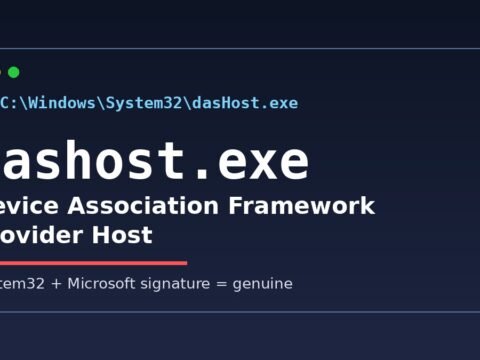
We used the same location-and-signature check for dashost.exe, and it works the same way here. The file location and the signature tell you more than the name alone ever will.
How do I check if my lsalso.exe is legitimate?
Open Task Manager, go to Details, and look for LsaIso.exe, spelled with a capital I. You will not find lsalso.exe there, since that spelling lives only in guides and searches. Right-click the process, check its location and signature, and confirm Credential Guard is enabled in System Information.
- Open Task Manager now with Ctrl, Shift, and Escape, then switch to the Details tab.
- Look for LsaIso.exe exactly, since a capital I there is often misread as a lowercase l.
- Right-click the process, choose Open file location, and inspect the signature tab in Properties carefully.
- Open System Information and confirm that Virtualization-based security and Credential Guard are both currently running.
- Run a full antivirus scan if the location, signature, or spelling looks wrong in any way.
Do not delete the file by hand, even if you are convinced it is fake. Let the antivirus tool handle removal. Hand-deleting a real security process can break logins, and hand-deleting the wrong file can break more than that.
Why is lsalso.exe using high CPU?
High CPU from this process is a known complaint, and the usual cause is not the process itself. Drivers and applications sometimes try to load their own code into the isolated process, which destabilizes it and drives CPU usage up. The fix is therefore about the code around the process, not the process itself.
Start with updates. Install pending Windows updates and update device drivers, especially recently installed or updated ones. If the spike started after a specific driver or application install, that is your prime suspect. A clean boot, which starts Windows with only Microsoft services and essential startup items, can confirm whether a third-party program is the trigger. If the spike disappears in a clean boot, re-enable programs in groups until it returns.
Corrupted system files are the next check. Run System File Checker and DISM from an elevated command prompt to repair them. For stubborn cases, guides describe analyzing a memory dump with WinDbg to identify a problem driver listed under the process, then reinstalling that driver or contacting its maker. Resetting Windows is the last resort, not the first step.
Should I disable or delete lsalso.exe?
No. The isolated LSA is a critical system process, and SpecterOps notes that attempting to stop or restart it will crash the operating system. Disabling the protection behind it leaves credentials exposed to exactly the theft Credential Guard exists to prevent. If the process is legitimate but using high CPU, work through the driver and update steps above instead. If the process is fake, scan and let security software remove it. There is no version of this problem where deleting a security process by hand is the right move.
Frequently asked questions
Why do I only see lsalso.exe sometimes?
It appears only when Credential Guard is installed and enabled. Most home PCs without that feature will never show it, and that absence is normal.
What is the difference between lsalso, LsaIso, and lsass?
lsass.exe is the main Local Security Authority process that always runs. LsaIso.exe, with a capital I, is Microsoft’s name for the isolated LSA under Credential Guard. lsalso.exe is not a separate file at all: it is the misreading of LsaIso.exe that appears in guides and search queries. Check the table above before trusting any spelling.
Can malware use the lsalso.exe name?
Yes. Lookalike names are a classic trick for this family of processes. Location, Microsoft signature, and Credential Guard status are the checks that separate a real copy from a fake one.
Will ending the task fix high CPU usage?
No. Ending a critical security process risks a crash and removes the protection. Fix the driver or application causing the spike instead.
Sources: Microsoft Learn, “How Credential Guard works”; SpecterOps, “Catching Credential Guard Off Guard”; SCIP, “Credential and Device Guard”; Appuals; WindowsReport; HelpDeskGeek; UMA Technology; Computer Hope.